

What Are Core Web Vitals?
Core Web Vitals are a set of metrics Google uses to measure real-world user experience on web pages. They became an official Google ranking factor in May 2021 as part of the Page Experience update — meaning poor scores can directly suppress your search rankings, regardless of how strong your content or backlinks are.
There are three metrics:
- LCP (Largest Contentful Paint) — loading performance
- CLS (Cumulative Layout Shift) — visual stability
- INP (Interaction to Next Paint) — responsiveness
Each metric has three performance bands: Good, Needs Improvement, and Poor. Google’s ranking signal is based on field data — real user experiences collected through Chrome — not just lab benchmarks. This means your score reflects actual visitor conditions, including slow mobile connections and lower-powered devices.
Google doesn’t just care about fast pages in theory. It cares about the 75th percentile of real users visiting your site. If 25% of your visitors are having a poor experience, your page won’t pass — even if the median experience is fine.
LCP: Largest Contentful Paint
LCP measures how long it takes for the largest visible content element — usually a hero image, a large heading, or a video poster — to render in the viewport. It’s the closest proxy Google has to “how fast does this page feel?”
Thresholds
- Good: under 2.5 seconds
- Needs Improvement: 2.5–4.0 seconds
- Poor: over 4.0 seconds
What Causes a Bad LCP?
LCP is usually hurt by one of four things:
- Slow server response — If the HTML itself takes over 600ms to arrive (high TTFB), you’re starting in a hole before the browser has even parsed anything.
- Render-blocking resources — CSS and JavaScript that the browser must download and execute before it can paint the LCP element.
- Unoptimized images — An uncompressed 3MB hero image is the single most common LCP killer we see.
- Late resource discovery — The browser can’t start downloading an image it doesn’t know about. If the LCP image is loaded via JavaScript or buried in CSS, the browser finds it too late.
How to Fix LCP
- Preload the LCP image with
<link rel="preload" as="image">in the document head. This is usually the single highest-impact LCP fix. - Use modern image formats — WebP is typically 25–35% smaller than JPEG at equivalent quality. AVIF is even better where supported.
- Set explicit width and height on image elements so the browser can allocate space before the image loads.
- Upgrade your hosting — Shared hosting with TTFB over 1 second is a structural handicap. A VPS with a proper CDN is the foundation.
- Eliminate render-blocking CSS — Inline critical CSS and defer the rest. Load fonts with
font-display: swap.
CLS: Cumulative Layout Shift
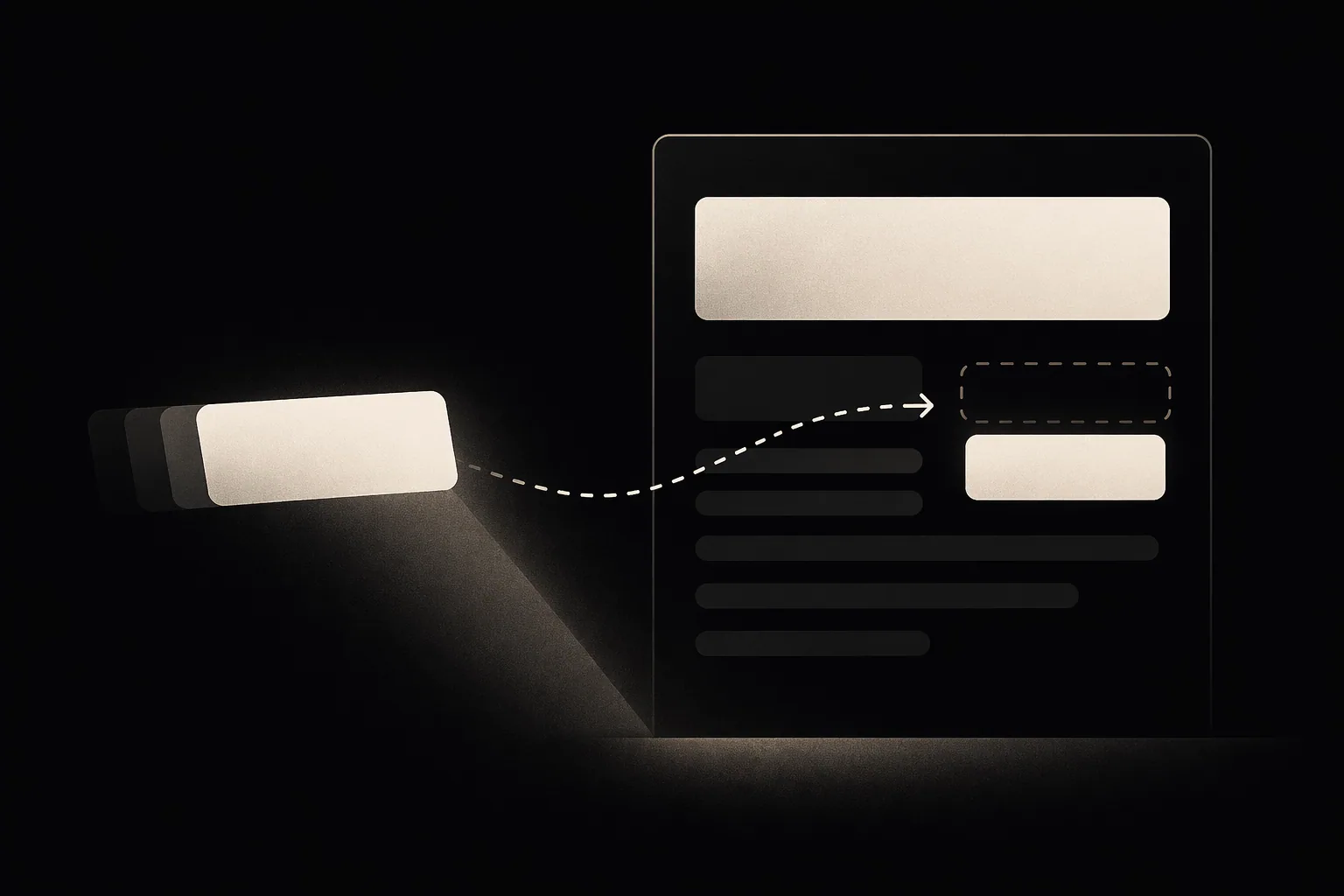
CLS measures how much the page visually jumps around during loading. If a button moves right as you’re about to click it, or text reflowed as an ad loaded above it — that’s CLS. It’s one of the most frustrating user experiences on the web, and Google penalizes it.
Thresholds
- Good: under 0.1
- Needs Improvement: 0.1–0.25
- Poor: over 0.25
What Causes a Bad CLS?
- Images without dimensions — The browser doesn’t know how much space to reserve, so when the image loads it pushes everything down.
- Dynamically injected content — Ads, cookie banners, chat widgets that load after the page renders and push content out of position.
- Web fonts causing FOUT — Flash of Unstyled Text, where system fonts are replaced by web fonts after layout, causing text to reflow.
- Animations that trigger layout — Animating properties like
top,left,width, orheightforces the browser to recalculate layout. Usetransforminstead.
How to Fix CLS
- Always set width and height on images and video. The browser uses these to reserve space before the element loads.
- Reserve space for ads and embeds with min-height containers so they don’t cause layout shifts when they load.
- Use
font-display: optionalfor non-critical fonts — this prevents the swap entirely. For important fonts, usefont-display: swapwith preloading. - Animate with
transformandopacityonly — these are composited by the browser without triggering layout recalculation.
INP: Interaction to Next Paint
INP replaced FID (First Input Delay) as a Core Web Vital in March 2024. Where FID only measured the first interaction, INP measures the latency of all interactions throughout the entire page lifecycle — clicks, taps, keyboard input. It’s a much more complete picture of how responsive your page feels.
Thresholds
- Good: under 200ms
- Needs Improvement: 200–500ms
- Poor: over 500ms
What Causes a Bad INP?
INP is almost always a JavaScript problem. The main thread is busy — parsing, executing, or garbage-collecting JavaScript — when a user interaction arrives, so the browser can’t respond immediately. Common culprits:
- Large JavaScript bundles executing on the main thread
- Third-party scripts (analytics, ads, chat widgets) blocking the main thread
- Expensive event handlers — sorting large arrays, making synchronous network requests, or doing heavy DOM manipulation on every keypress
- React hydration overhead on server-rendered apps
How to Fix INP
- Audit and reduce third-party scripts — Use the Coverage tab in Chrome DevTools to find unused JavaScript. Every script you remove is potential INP improvement.
- Break up long tasks — Any JavaScript task over 50ms blocks the main thread. Use
setTimeoutorscheduler.yield()to yield to the browser between chunks. - Defer non-critical JavaScript with
deferorasyncattributes, and lazy-load below-the-fold components. - Move work off the main thread — Use Web Workers for computationally expensive operations that don’t need DOM access.
Quick diagnosis
Open Chrome DevTools → Performance tab → record a page interaction. Any task over 50ms (shown in red) is a “long task” and a candidate for INP improvement. Sort by duration and start with the worst offenders.
How to Measure Your Scores
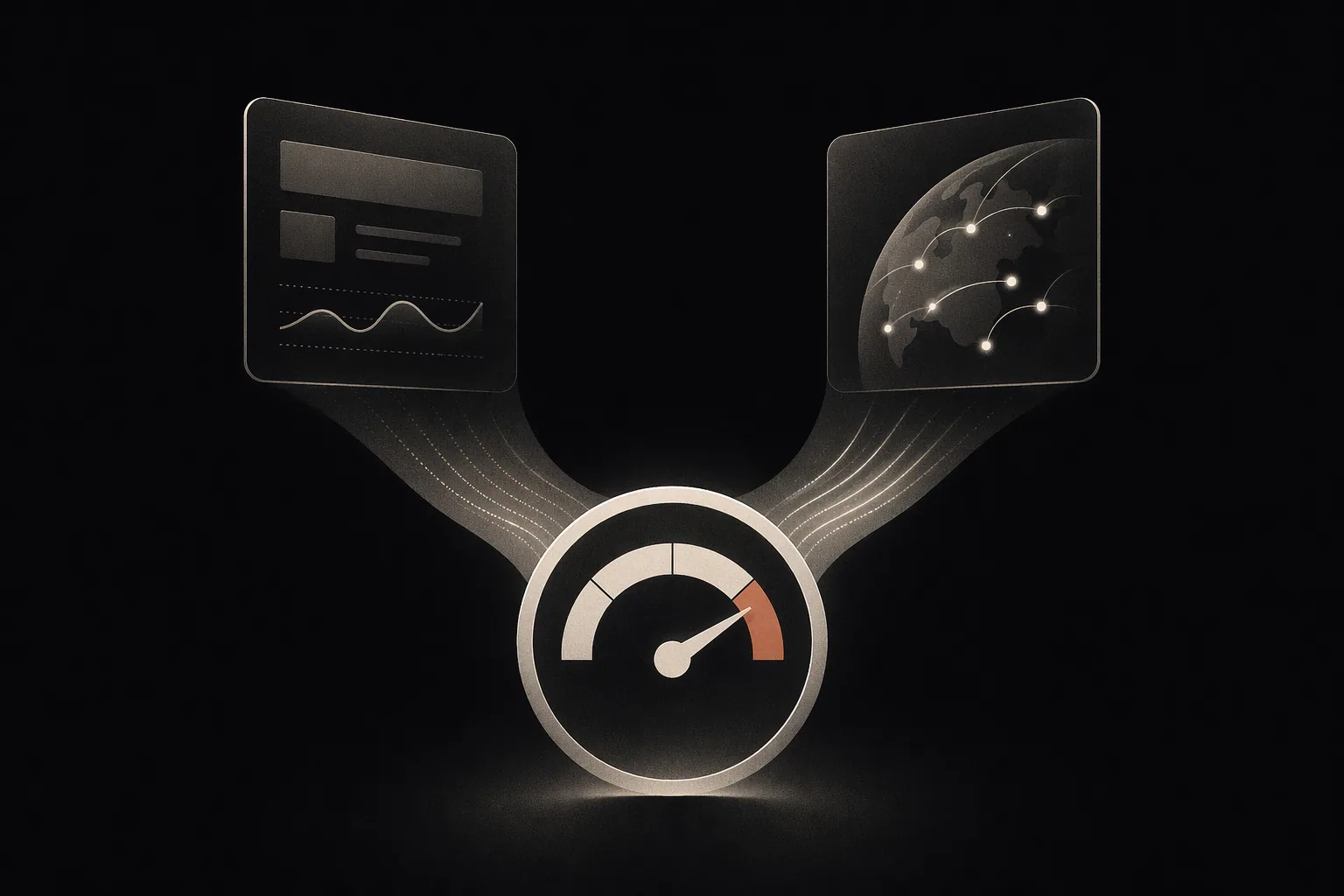
There are two types of Core Web Vitals data: lab data (simulated, from tools) and field data (real user measurements from Chrome). Google uses field data for ranking. Lab data is useful for debugging. You need both.
Field Data Sources
- Google Search Console → Core Web Vitals report. Shows which URLs are failing and groups them by issue type. This is what Google actually uses.
- CrUX (Chrome UX Report) — The raw dataset behind GSC. Accessible via PageSpeed Insights, the CrUX API, or BigQuery for bulk analysis.
Lab Data Sources
- PageSpeed Insights — Shows both lab (Lighthouse) and field (CrUX) data in one place. Start here.
- Chrome DevTools Lighthouse — Runs locally, useful for testing changes before deploying.
- WebPageTest — More advanced: filmstrips, waterfall charts, multi-step tests, testing from real devices on real networks.
A common mistake: fixing lab scores without improving field scores. If your field data is poor but lab data is good, the issue is likely third-party scripts or real-world network conditions that the lab simulation doesn’t capture.
The Business Case for Speed
The ranking impact of Core Web Vitals is real but modest — Google describes it as a tiebreaker when other signals are equal. The business case for fixing them doesn’t rest on rankings alone.
The conversion data is unambiguous:
- Google’s own research found that sites loading in 1 second convert 3× better than sites loading in 5 seconds.
- A 100ms improvement in load time correlated with a 1% increase in conversion rate for Walmart.
- Pinterest reduced perceived wait times by 40% and saw a 15% increase in signups.
- The BBC found they lost an additional 10% of users for every additional second their site took to load.
Every millisecond of latency is friction. Friction kills conversions. And for most businesses, fixing Core Web Vitals is purely a technical exercise that pays for itself within weeks.
Not sure where you stand?
We’ll pull your Core Web Vitals field data and tell you exactly what’s failing and how to fix it — as part of your free SEO audit.